What Is Webpack, node_modules and package.json? A Beginner's Guide to the JavaScript Toolchain
Understand package.json, node_modules, package-lock.json and webpack: what each one is, why it exists, and how they work together in every JavaScript project.

Open any modern JavaScript project and you will find three things: a package.json file, a giant node_modules folder, and usually a bundler such as webpack. Beginners often copy commands without knowing what these pieces do. This guide explains each one in plain words, shows how they connect, and gives you the commands you will use every day.
The big picture#
Think of a JavaScript project like cooking a meal:
- package.json is the recipe. It lists the ingredients (packages) and the steps (scripts).
- node_modules is the pantry. It holds the actual ingredients after you go shopping with
npm install. - webpack is the chef. It takes all your files and the ingredients and turns them into a few dishes (bundles) the browser can serve quickly.
What is package.json?#
package.json is a JSON file in the root of your project that describes it. npm, Yarn, pnpm, editors, CI servers and hosting platforms all read it. You create one with:
npm init -yA typical file looks like this:
{
  "name": "my-app",
  "version": "1.0.0",
  "private": true,
  "scripts": {
    "dev": "webpack serve --mode development",
    "build": "webpack --mode production",
    "test": "jest"
  },
  "dependencies": {
    "axios": "^1.7.0",
    "react": "^19.0.0",
    "react-dom": "^19.0.0"
  },
  "devDependencies": {
    "webpack": "^5.97.0",
    "webpack-cli": "^5.1.0",
    "babel-loader": "^9.2.0"
  },
  "engines": {
    "node": ">=20"
  }
}
The important fields#
| Field | What it does |
|---|---|
name, version | Identify the project. Required if you publish it to npm. |
private | true stops you from publishing an app to npm by accident. |
type | Optional. "module" makes Node treat .js files as ES modules (import/export). If you set it, config files that use require() must be renamed to .cjs. |
scripts | Shortcuts you run with npm run <name>. |
dependencies | Packages your app needs at runtime (React, axios, Express). |
devDependencies | Packages only needed while developing or building (webpack, Jest, ESLint, TypeScript). |
engines | Which Node versions the project supports. |
scripts: your project's command menu#
Instead of remembering long commands, you name them in scripts:
npm run dev      # starts the dev server
npm run build    # creates the production bundle
npm test # "test" and "start" don't need "run"Scripts can use any tool installed in node_modules/.bin without a path. That is why "build": "webpack" works even though webpack is not installed globally.
dependencies vs devDependencies#
npm install axios              # adds to dependencies
npm install -D webpack jest    # -D adds to devDependencies
For a frontend app the split is mostly about clarity, because webpack bundles whatever you import either way. For a Node server it matters more: npm ci --omit=dev in production skips devDependencies and keeps the server image small.
Reading version numbers (semver)#
Every version follows semantic versioning: MAJOR.MINOR.PATCH. The symbol in front tells npm which updates it may install.
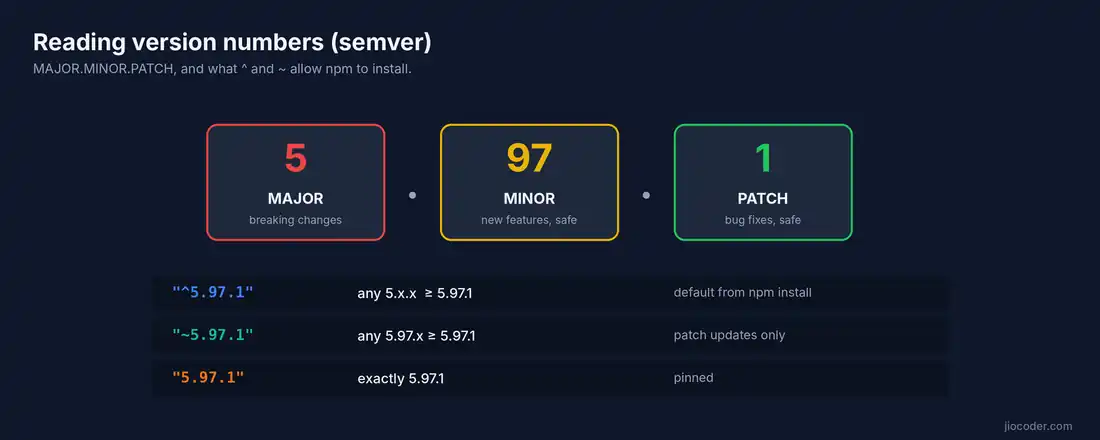
^5.97.1(caret, the default): any5.x.xat or above 5.97.1. Never jumps to 6.~5.97.1(tilde): only patch updates,5.97.x.5.97.1: exactly that version.
Semver is a promise, not a guarantee. A minor release can still break something. That is exactly why the lock file exists (see below).
What happens when you run npm install?#
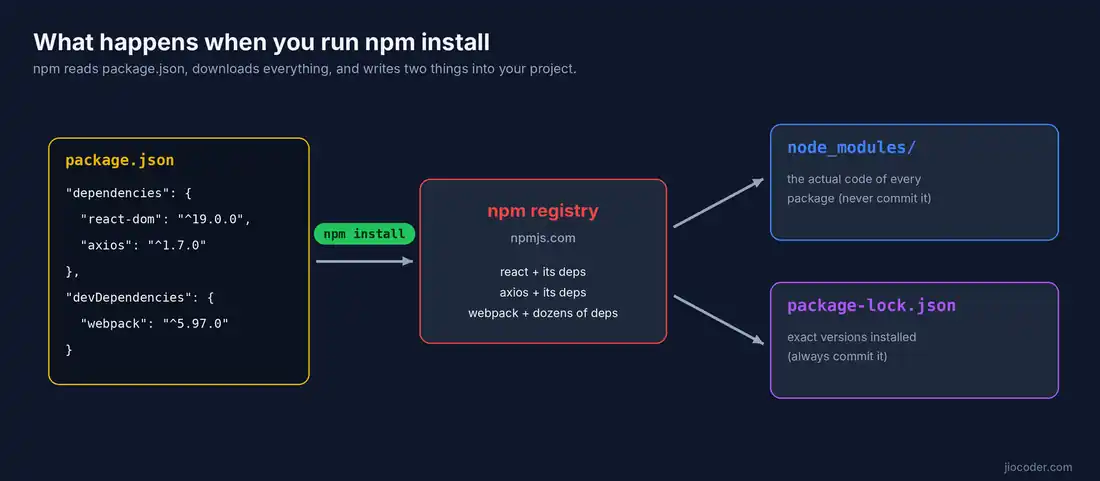
- npm reads
package.json(andpackage-lock.jsonif it exists). - It works out the full list of packages, including the packages those packages need.
- It downloads them from the npm registry (or its local cache).
- It writes them into
node_modules/and records the exact versions inpackage-lock.json. - It runs any install scripts and links CLI tools into
node_modules/.bin.
What is node_modules?#
node_modules is the folder where npm puts the real code of every package. When you write import axios from "axios", Node and webpack look inside node_modules/axios to find it. If the import is not found there, they walk up to parent folders and check their node_modules too.
Why is it so big?#
You might add three packages, but each of them depends on others, which depend on others again. This is called the dependency tree.
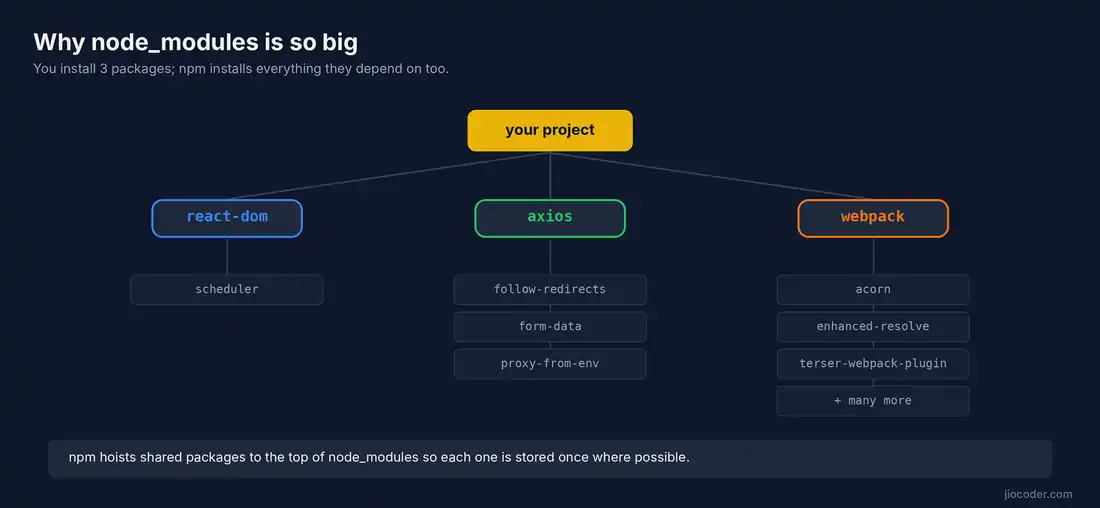
webpack alone brings in dozens of packages. npm hoists shared packages to the top of node_modules so each one is stored once where possible, but a real app can still have hundreds or thousands of folders. See for yourself:
npm ls            # top-level dependency tree
npm ls --all      # the full tree
npm explain ms    # why is this package installed?
du -sh node_modules
Never commit node_modules#
It is huge, it can be rebuilt any time from package.json plus the lock file, and some packages contain compiled binaries for your specific OS. Add it to .gitignore:
# .gitignore
node_modules/
dist/
.env
What is package-lock.json?#
package.json says "any 1.x of axios is fine". package-lock.json says "we installed exactly axios 1.7.9, from this URL, with this checksum", and the same for every package in the tree. It makes installs reproducible: your laptop, your teammate's laptop and the CI server all get the same code.
- Always commit
package-lock.json. - Use
npm installwhen you add or update packages. - Use
npm ciin CI and Docker. It deletesnode_modules, installs exactly what the lock file says, and fails if package.json and the lock file disagree.
npm ci                 # clean, exact, fast install for CI
npm outdated           # what can be updated?
npm update             # update within the ^ / ~ ranges
npm audit              # check for known vulnerabilities
What about npx?#
npx runs a package's command without you installing it globally. It uses the local copy in node_modules/.bin if there is one, otherwise it downloads it temporarily.
npx webpack --version
npx create-vite@latest my-app
What is webpack?#
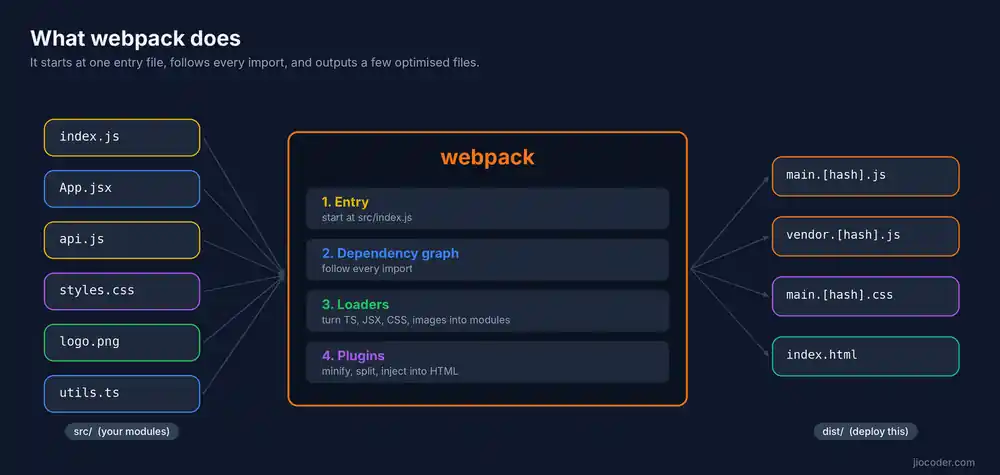
webpack is a module bundler. It starts from one entry file, follows every import to build a dependency graph of your whole app, and outputs a small number of optimised files that browsers can load quickly.
Why do we need a bundler?#
- Browsers don't understand everything you write. JSX, TypeScript, Sass and imports like
import "./styles.css"must be transformed first. - Bare imports. The browser has no idea where
import React from "react"lives. The bundler resolves it fromnode_modules. - Performance. Minifying, removing unused code (tree shaking), splitting code per route and adding content hashes for long-term caching all make the site faster.
- One build for many file types. Images, fonts, CSS and JSON all become part of the graph.
webpack's core concepts#
| Concept | Meaning |
|---|---|
| Entry | Where webpack starts reading, e.g. ./src/index.js. |
| Output | Where bundles are written and how they are named, e.g. dist/main.[contenthash].js. |
| Loaders | Transform non-JS files into modules: babel-loader for JSX/modern JS, css-loader, ts-loader. |
| Plugins | Work on the whole build: generate HTML, extract CSS, define env variables, analyse bundle size. |
| Mode | development (fast builds, readable output) or production (minified, optimised). |
A complete webpack setup#
Install the tools:
npm install react react-dom
npm install -D webpack webpack-cli webpack-dev-server \
  babel-loader @babel/core @babel/preset-env @babel/preset-react \
  css-loader style-loader html-webpack-plugin
Create webpack.config.js in the project root:
const path = require("path");
const HtmlWebpackPlugin = require("html-webpack-plugin");

module.exports = (env, argv) => ({
  entry: "./src/index.jsx",
  output: {
    path: path.resolve(__dirname, "dist"),
    filename: "[name].[contenthash].js",
    clean: true, // empty dist/ before each build
  },
  resolve: { extensions: [".js", ".jsx"] },
  module: {
    rules: [
      {
        test: /\.jsx?$/,
        exclude: /node_modules/,
        use: {
          loader: "babel-loader",
          options: { presets: ["@babel/preset-env", "@babel/preset-react"] },
        },
      },
      { test: /\.css$/, use: ["style-loader", "css-loader"] },
      { test: /\.(png|svg|jpg|webp)$/, type: "asset" },
    ],
  },
  plugins: [new HtmlWebpackPlugin({ template: "./public/index.html" })],
  devServer: { port: 3000, hot: true, historyApiFallback: true },
  devtool: argv.mode === "production" ? "source-map" : "eval-source-map",
  optimization: { splitChunks: { chunks: "all" } },
});
Note that loaders in use run from right to left: css-loader reads the CSS first, then style-loader injects it into the page.
Then run it:
npm run dev     # webpack serve, hot reload at localhost:3000
npm run build   # optimised files in dist/
Features that make your site faster#
Code splitting#
Load a page's code only when the user visits it, using dynamic import():
import { lazy, Suspense } from "react";
const Dashboard = lazy(() => import("./pages/Dashboard"));

export default function App() {
  return (
    <Suspense fallback={<p>Loading...</p>}>
      <Dashboard />
    </Suspense>
  );
}
webpack creates a separate chunk for Dashboard. splitChunks also moves libraries from node_modules into a vendor chunk that rarely changes.
Content hashes and caching#
[contenthash] puts a fingerprint of the file's content in its name, like main.3f9a2c.js. The name only changes when the code changes, so you can tell browsers to cache these files for a year.
Tree shaking#
In production mode webpack drops exports you never import, as long as you use ES module syntax. Prefer import { debounce } from "lodash-es" over importing all of lodash.
Run npx webpack-bundle-analyzer (or add its plugin) to see a map of what is inside your bundle. It is the fastest way to find a huge library you forgot about.
Is webpack still worth learning?#
Yes, but know the landscape. Many new projects start with Vite, which serves native ES modules in development and builds with Rollup, so it starts almost instantly. esbuild and Rspack (a webpack-compatible bundler written in Rust) focus on speed, and Next.js has its own Turbopack. Still, a huge number of existing apps, older Create React App projects, Angular CLI setups and enterprise codebases run on webpack. The concepts you learn here (entry, graph, loaders, plugins, splitting, hashing) apply to all of these tools.
| Tool | Best for |
|---|---|
| webpack | Existing apps, maximum flexibility, huge plugin ecosystem |
| Vite | New React, Vue and Svelte apps with a fast dev experience |
| Rspack | Speeding up a webpack app with minimal config changes |
| esbuild | Very fast builds for libraries, scripts and tooling |
Common problems and fixes#
- "Cannot find module 'x'": run
npm install. If it is your own file, check the path and theresolve.extensionssetting. - "require is not defined in ES module scope": your package.json has
"type": "module". Rename the config towebpack.config.cjsor rewrite it withimport/export default. - Works on my machine, fails in CI: commit
package-lock.jsonand usenpm ci. Check the Node version withenginesor an.nvmrcfile. - Weird install errors: the classic reset:
Only delete the lock file if you are happy to get newer versions.Bash
rm -rf node_modules package-lock.json npm cache verify npm install - "You may need an appropriate loader": webpack found a file type without a matching rule. Add the loader for it.
- Huge bundle: analyse it, lazy-load heavy pages, and replace big libraries with lighter ones.
Daily cheat sheet#
npm init -y                  # create package.json
npm install                  # install everything from package.json
npm install <pkg>            # add a runtime dependency
npm install -D <pkg>         # add a dev dependency
npm uninstall <pkg>          # remove a package
npm ci                       # exact install from lock file (CI)
npm run <script>             # run a script from package.json
npm outdated / npm update    # check and update versions
npm ls --all                 # view the dependency tree
npx webpack --mode production # build with webpack
Key takeaways#
- package.json describes your project: its scripts, dependencies and devDependencies.
- ^ allows minor and patch updates, ~ allows only patch updates.
- node_modules holds the real code of every package and its dependencies. Never commit it.
- package-lock.json pins exact versions. Always commit it and use
npm ciin CI. - webpack builds a dependency graph from an entry file and uses loaders and plugins to output optimised, hashed bundles.
- Code splitting, content hashes and tree shaking are the main ways a bundler makes your site faster.
- Vite, Rspack and esbuild are popular alternatives, but webpack concepts carry over to all of them.