What Is Git? Why Developers Use It, Daily Commands and GitHub Desktop Guide
Learn what Git is, why every developer needs it, real use cases, the Git commands you will use every day, and how to do the same work in GitHub Desktop without the terminal.
Every developer, from a student building a first portfolio to an engineer at a large company, uses Git every single day. This guide explains what Git is, why you need it, where it is used, the commands you will type daily, and how to do the same work with GitHub Desktop if you prefer buttons over the terminal.
What is Git?#
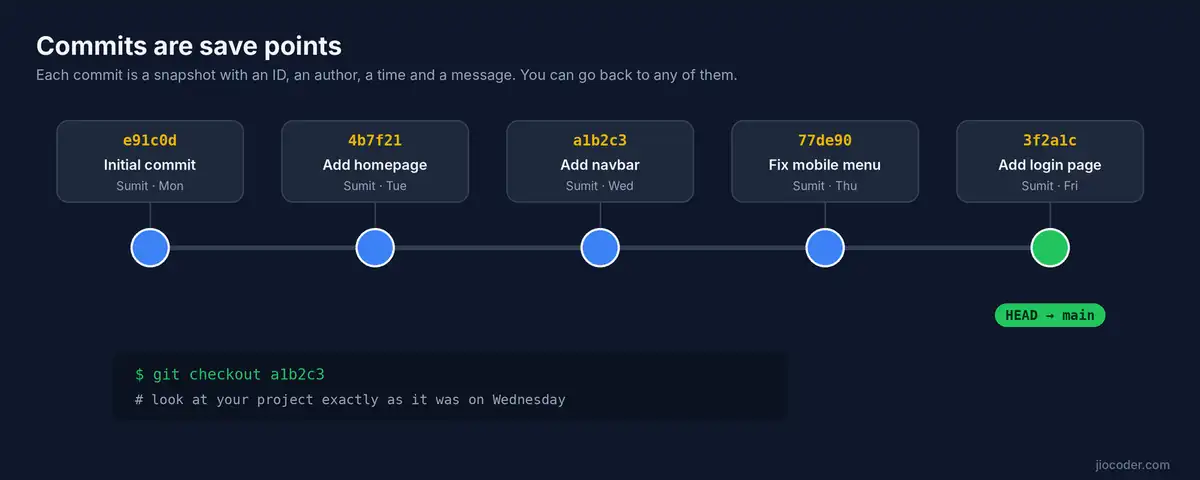
Git is a free, open-source version control system. It records every change you make to your project files, so you can see who changed what, when and why, and go back to any earlier version at any time.
Think of it like save points in a video game. Each time you reach a good point, you save. If something breaks later, you load an older save instead of starting over.
Git was created in 2005 by Linus Torvalds to manage the Linux kernel. Today it is the standard tool for almost every software project in the world.
Git vs GitHub: not the same thing#
Beginners often mix these up:
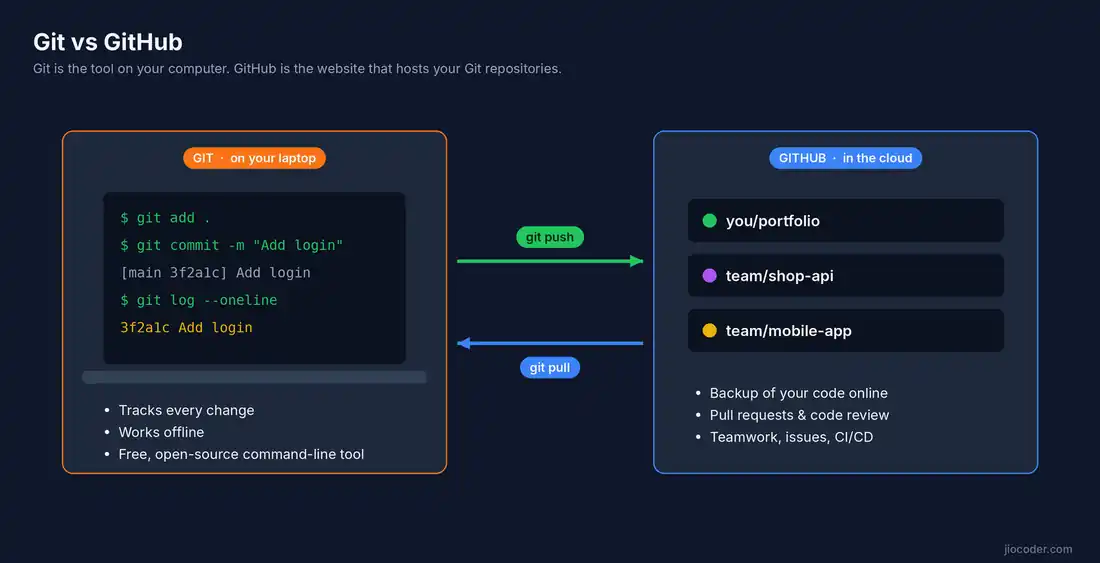
- Git is the tool that runs on your computer. It works offline and tracks your changes locally.
- GitHub is a website that stores Git repositories online. It adds teamwork features like pull requests, code review, issues and CI/CD.
GitLab and Bitbucket are alternatives to GitHub. They all host Git repositories; Git itself is the same everywhere.
Why do developers use Git?#
Without Git, people end up with folders like project-final, project-final-v2 and project-final-REAL. Git solves that mess and much more:
- Complete history. Every change is saved with a message, an author and a time. Nothing is lost.
- Undo mistakes safely. Broke something? Go back to the last working version in seconds.
- Work in parallel. Ten developers can work on ten features at the same time without overwriting each other.
- Experiment without fear. Try an idea on a separate branch. If it fails, delete the branch; your main code is untouched.
- Backup. Once you push to GitHub, your code lives in the cloud, not only on one laptop.
- Code review. Teammates review changes in pull requests before they reach production.
- Automation. Tests and deployments run automatically on every push with tools like GitHub Actions.
How Git works: commits are save points#
A commit is a snapshot of your project at one moment. Each commit has a unique ID (a hash like a1b2c3), the author, the date and a message describing the change. Commits form a timeline you can move back and forth on.
The four places your changes live#
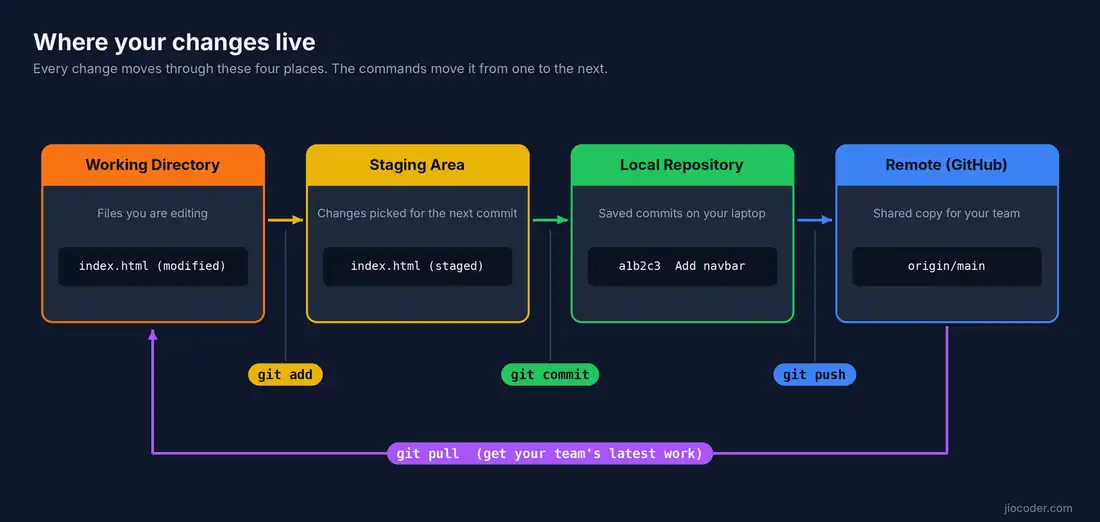
This is the single most important idea in Git. A change moves through four areas:
- Working directory: the files you are editing right now.
- Staging area: the changes you have picked for your next commit (
git add). - Local repository: commits saved on your machine (
git commit). - Remote repository: the shared copy on GitHub (
git push). Your teammates' work comes back withgit pull.
It lets you commit only part of your work. If you fixed a bug and also started a new feature, you can stage and commit just the bug fix, with its own clear message.
Branches: work without breaking main#
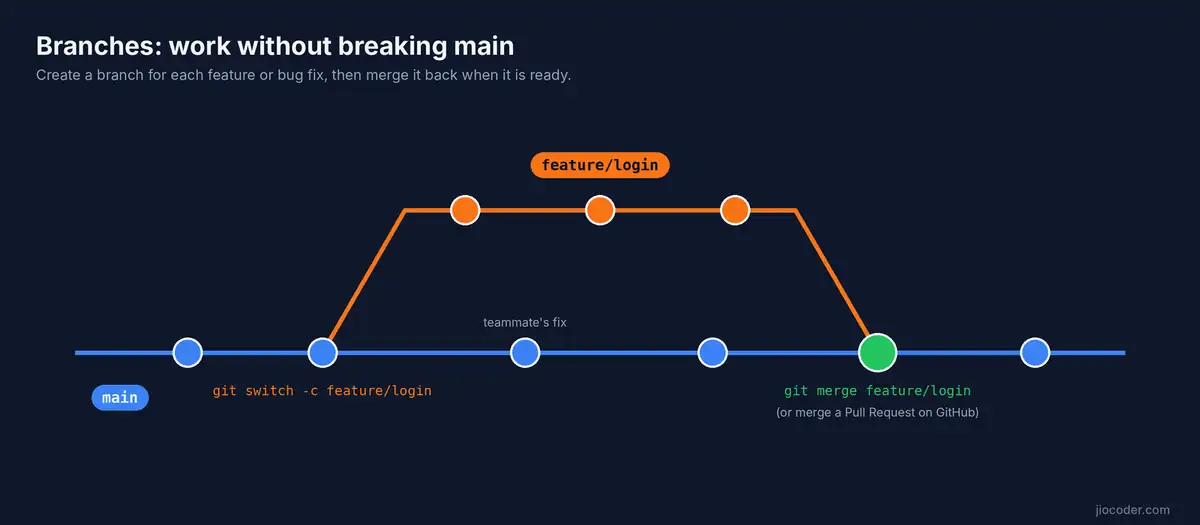
A branch is an independent line of work. The main branch holds the stable code. For each feature or fix, you create a new branch, commit there, and merge it back when it is ready, usually through a pull request on GitHub.
Real-world use cases of Git#
- Team development: every company with more than one developer uses Git to combine everyone's work.
- Open source: projects like React, Node.js and Linux accept contributions from thousands of people through Git and pull requests.
- Bug hunting:
git logandgit blameshow when and why a line changed.git bisectcan even find the exact commit that introduced a bug. - Hotfixes: fix a production bug on its own branch and release it, while unfinished features stay on their branches.
- Deployment: platforms like Vercel, Netlify and Render deploy your site automatically when you push to
main. - Your portfolio: recruiters look at your GitHub profile. Regular, well-described commits show how you work.
- Beyond code: documentation, configuration files, infrastructure (Terraform) and even blog posts are kept in Git.
Why Git is a must-have skill for every developer#
Git is not optional. Almost every job description lists it, and you will use it from your first day at any company. Interviews often include questions like "What is the difference between merge and rebase?" or "How do you undo a commit?".
Git also protects you. Once you commit, it is very hard to truly lose work. That safety makes you braver: you can refactor, experiment and clean up code knowing you can always go back.
Setting up Git (one time only)#
Install Git from git-scm.com (on macOS you can also run xcode-select --install). Then tell Git who you are. This name and email appear on every commit:
git --version
git config --global user.name "Your Name"
git config --global user.email "you@example.com"
git config --global init.defaultBranch main
Start a project#
# Option 1: start Git in an existing folder
cd my-project
git init

# Option 2: copy an existing project from GitHub
git clone https://github.com/username/repo.git
The Git commands developers use every day#
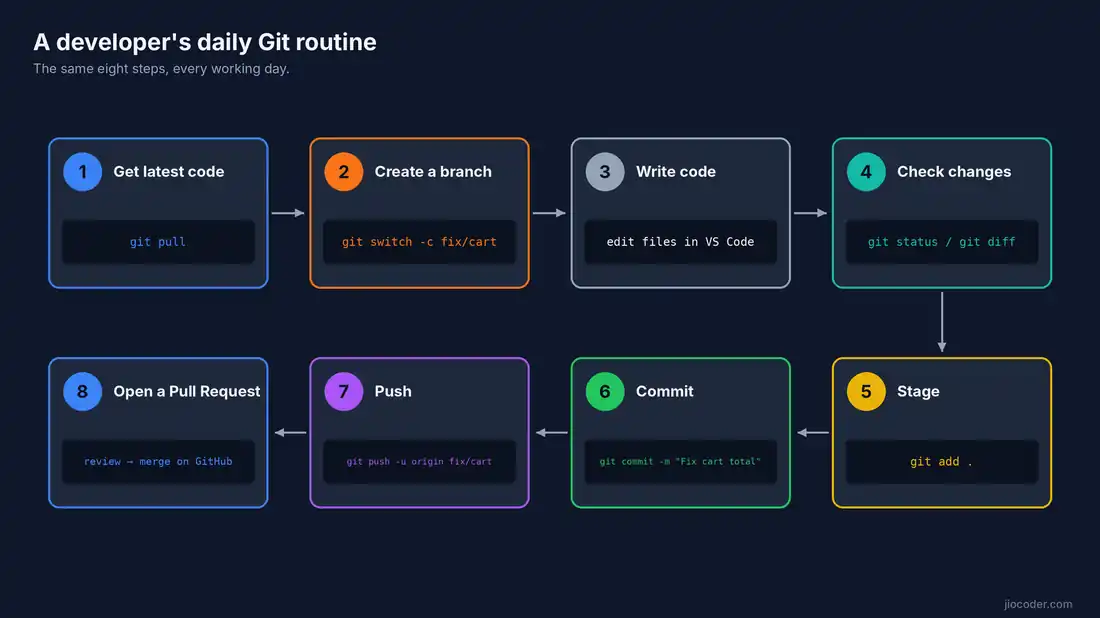
You do not need to know hundreds of commands. These cover more than 90% of daily work.
1. Get the latest code#
git switch main
git pull
Always start the day by pulling, so you build on your team's newest work.
2. Create a branch for your task#
git switch -c feature/login-pageUse clear names like feature/…, fix/… or chore/…. (Older tutorials use git checkout -b; it does the same thing.)
3. Check what changed#
git status          # which files changed
git diff            # exact line changes (not yet staged)
git diff --staged   # what will go into the next commit
4. Stage and commit#
git add src/Login.jsx     # stage one file
git add .                 # or stage everything in this folder
git commit -m "Add login form with email validation"
5. Push and open a pull request#
git push -u origin feature/login-page   # first push of a new branch
git push                                # later pushes
GitHub then shows a "Compare & pull request" button. Open the PR, ask for review, and merge when approved.
6. Look at history#
git log --oneline --graph --all
git show a1b2c3      # details of one commit
Daily command cheat sheet#
| Task | Command |
|---|---|
| See changed files | git status |
| See line changes | git diff |
| Stage changes | git add <file> or git add . |
| Save a commit | git commit -m "message" |
| Get team changes | git pull |
| Send your commits | git push |
| New branch | git switch -c <name> |
| Change branch | git switch <name> |
| List branches | git branch |
| Bring main into your branch | git merge main |
| Park unfinished work | git stash then git stash pop |
| Short history | git log --oneline |
| Delete a merged branch | git branch -d <name> |
Undoing things (the commands that save your day)#
# Throw away changes in a file you have not staged
git restore src/App.jsx

# Unstage a file (keep the changes)
git restore --staged src/App.jsx

# Fix the message of your last commit (before pushing)
git commit --amend -m "Better message"

# Undo the last commit but keep the changes (before pushing)
git reset --soft HEAD~1

# Undo a commit that is already pushed (safe for teams)
git revert a1b2c3Never use git reset --hard or git push --force on a shared branch unless you are sure. They rewrite history and can delete your teammates' work. For pushed commits, git revert is the safe choice.
Ignore files you should never commit#
Create a .gitignore file in the project root so Git skips generated files and secrets:
node_modules/
dist/
.env
.DS_Store
*.log
What a merge conflict looks like (and how to fix it)#
A conflict happens when two people change the same line. Git cannot guess which version is right, so it marks both and asks you to decide:
<<<<<<< HEAD
<h1>Welcome to JioCoder</h1>
=======
<h1>Learn to code with JioCoder</h1>
>>>>>>> feature/new-title- Open the file and keep the correct version (or combine both).
- Delete the three marker lines (
<<<<<<<,=======,>>>>>>>). - Run
git add <file>and thengit commit.
VS Code shows "Accept Current", "Accept Incoming" and "Accept Both" buttons above each conflict, which makes this much easier.
GitHub Desktop: Git without the terminal#
GitHub Desktop is a free app from GitHub for Windows and macOS. Every common Git command has a button, and you can see your changes visually before you commit. It is great for beginners and handy even for experienced developers when reviewing changes.
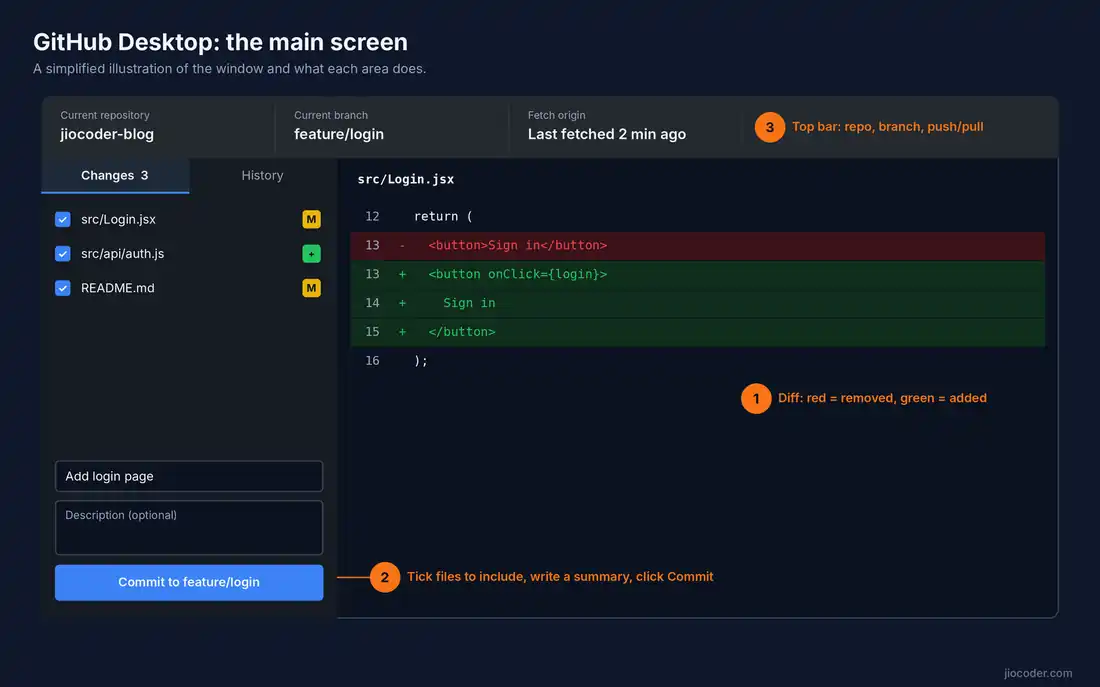
The main screen has three parts:
- Top bar: Current repository (switch projects), Current branch (switch or create branches) and Fetch origin / Pull origin / Push origin (sync with GitHub).
- Left panel: the Changes tab lists every modified file with a checkbox. The History tab shows past commits.
- Right panel: the diff of the selected file. Red lines were removed, green lines were added.
Step 1: Install and sign in#
Download GitHub Desktop from desktop.github.com, install it, and sign in with your GitHub account. It sets up your Git name and email for you.
Step 2: Get a repository#
- Clone an existing repo: File → Clone repository, pick it from the list or paste the URL, and choose a local folder.
- Create a new repo: File → New repository. Then click Publish repository to put it on GitHub.
- Add a folder that already uses Git: File → Add local repository.
Step 3: Create a branch#
Click Current branch → New branch, type a name like feature/login-page, and create it from main.
Step 4: Edit your code#
Use Repository → Open in Visual Studio Code (or your editor). When you save files, they appear in the Changes tab automatically.
Step 5: Review and commit#
- Click each file to read its diff on the right.
- Untick any file you do not want in this commit. You can even right-click individual lines to leave them out.
- Write a short Summary (the commit message) and an optional description.
- Click Commit to feature/login-page.
Step 6: Push to GitHub#
For a new branch, click Publish branch. After that, the button becomes Push origin whenever you have new commits.
Step 7: Open a pull request#
Click Create Pull Request (newer versions show Preview Pull Request first). GitHub opens in your browser with the PR ready. Add a description, request reviewers, and merge when approved.
Step 8: Stay up to date#
Click Fetch origin to check GitHub for new commits. If there are any, the button changes to Pull origin. To bring the latest main into your feature branch, use Branch → Update from main.
Handling conflicts in GitHub Desktop#
If a merge has conflicts, GitHub Desktop lists the conflicted files and offers Open in Visual Studio Code. Fix them as shown above, save, return to the app and click Continue merge.
GitHub Desktop buttons and their Git commands#
| GitHub Desktop | Git command |
|---|---|
| File → Clone repository | git clone |
| Current branch → New branch | git switch -c |
| Ticking files in Changes | git add |
| Commit to [branch] | git commit |
| Publish branch / Push origin | git push |
| Fetch origin | git fetch |
| Pull origin | git pull |
| Branch → Update from main | git merge main |
| Stash all changes | git stash |
| Right-click commit → Revert changes in commit | git revert |
Terminal or GitHub Desktop?#
Use whichever helps you work well. GitHub Desktop is excellent for seeing exactly what you are about to commit. The terminal is faster once you know the commands, works on servers, and is what interviewers will ask about. Most developers use both: the terminal for speed, a visual tool for reviewing diffs and resolving conflicts.
Good habits that make you look like a pro#
- Commit small and often. One logical change per commit is easier to review and undo.
- Write clear messages. Use the imperative: "Add login validation", not "changes" or "fixed stuff".
- Pull before you start, push before you leave.
- Never commit secrets. Keep API keys in
.envand add it to.gitignore. - Do not work directly on main. Use a branch and a pull request, even on solo projects, to build the habit.
- Delete branches after merging to keep the repository tidy.
Key takeaways#
- Git is a version control system that saves the full history of your project; GitHub hosts Git repositories online for teamwork.
- Changes move from the working directory to staging (
git add), to a commit (git commit), to GitHub (git push). - Branches let you build features and fixes without breaking
main; pull requests bring them back safely. - The daily loop is: pull, branch, code, status/diff, add, commit, push, pull request.
- Use
git restore,git reset --softandgit revertto undo mistakes; avoid force-pushing shared branches. - GitHub Desktop gives every common Git command a button and is a great way to review changes visually.