HTML Complete Guide: Semantic HTML, Forms, Accessibility and SEO
Learn HTML in depth: document structure, semantic elements, links, images, forms, tables, accessibility, script loading and SEO basics, with clear examples.
HTML (HyperText Markup Language) gives every web page its structure and meaning. CSS makes it look good and JavaScript makes it interactive, but HTML decides what each piece of content is. This guide takes you from the basic document structure to semantic elements, forms, accessibility and SEO, with examples you can copy.
How an HTML document is structured, which semantic elements to use and when, how to write accessible forms and images, how browsers load scripts, and which tags in the <head> matter for SEO.
The structure of an HTML document#
Every HTML page follows the same basic skeleton. The browser reads it from top to bottom and builds the DOM (Document Object Model), a tree of objects that CSS and JavaScript work with.
<!DOCTYPE html>
<html lang="en">
  <head>
    <meta charset="utf-8">
    <meta name="viewport" content="width=device-width, initial-scale=1">
    <title>My First Page</title>
  </head>
  <body>
    <h1>Hello, world!</h1>
    <p>This is my first web page.</p>
  </body>
</html>
<!DOCTYPE html>tells the browser to use modern standards mode. Without it, browsers fall back to "quirks mode" and render some layouts differently.lang="en"tells screen readers and search engines the page language.<head>holds information about the page: title, character set, styles and metadata. It is not displayed.<body>holds everything the user sees.
Elements, tags and attributes#
An element is made of an opening tag, content and a closing tag. Attributes add extra information inside the opening tag. Some elements, called void elements, have no content or closing tag, such as <img>, <br>, <input> and <meta>.
<a href="https://jiocoder.com" target="_blank" rel="noopener">Visit JioCoder</a>
<!-- tag: a, attributes: href, target, rel, content: Visit JioCoder -->
Semantic HTML: use the right element#
Semantic HTML means choosing elements that describe the meaning of the content, not just how it looks. A <div> says nothing about its content, while <nav> clearly says "this is navigation".
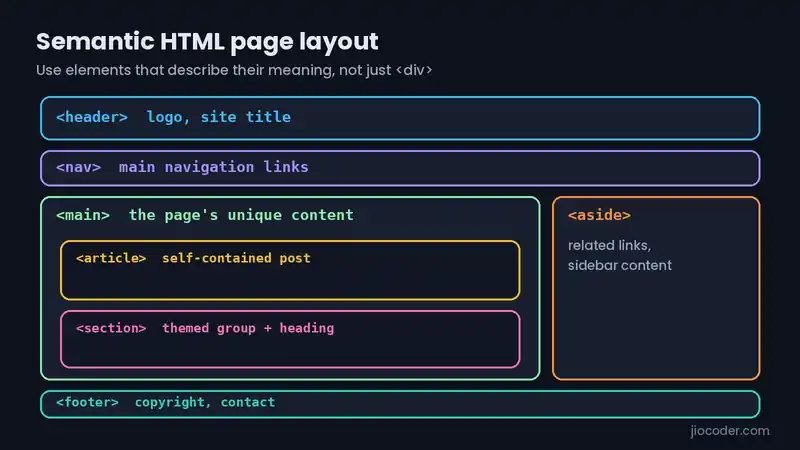
| Element | Use it for |
|---|---|
<header> | Introductory content: logo, site title, top navigation |
<nav> | Major navigation links |
<main> | The main, unique content of the page (only one per page) |
<article> | Self-contained content that makes sense alone: a blog post, a product card, a comment |
<section> | A themed group of content, usually with its own heading |
<aside> | Related but secondary content: sidebars, related links |
<footer> | Closing content: copyright, contact links |
<figure> + <figcaption> | An image, chart or code sample with a caption |
Why semantic HTML matters#
- Accessibility: screen readers let users jump straight to
<nav>or<main>. - SEO: search engines understand which content is the main article.
- Maintainability: other developers can read your code faster.
Headings create the outline#
Use one <h1> for the page title, then <h2> for sections and <h3> for subsections. Never skip levels just to get a smaller font size; change the size with CSS instead.
<h1>Learn JavaScript</h1>
  <h2>Variables</h2>
    <h3>let and const</h3>
<h2>Functions</h2>Before using a <div>, ask: "Is there an element that describes this content?" Use <div> and <span> only for styling or grouping when no semantic element fits.
Links and images#
Links#
<!-- Link to another page -->
<a href="/articles/css-complete-guide">Read the CSS guide</a>

<!-- Open in a new tab safely -->
<a href="https://developer.mozilla.org" target="_blank" rel="noopener noreferrer">MDN Docs</a>

<!-- Jump to a section on the same page -->
<a href="#forms">Go to forms</a>
Write link text that makes sense on its own. "Read the CSS guide" is better than "click here" for both screen reader users and SEO.
Images#
<img
  src="team-photo.webp"
  alt="Five developers working together around a laptop"
  width="800"
  height="450"
loading="lazy">altdescribes the image for screen readers and shows if the image fails to load. Usealt=""for purely decorative images.widthandheightlet the browser reserve space, which prevents layout shifts while the page loads.loading="lazy"delays images below the fold. Do not lazy-load the main hero image.
Responsive images#
Use srcset and sizes so the browser downloads the smallest image that still looks sharp on each screen.
<img
  src="hero-800.webp"
  srcset="hero-400.webp 400w, hero-800.webp 800w, hero-1600.webp 1600w"
  sizes="(min-width: 900px) 50vw, 100vw"
  alt="Laptop showing a code editor">
Forms: collecting user input#
Forms are where accessibility mistakes are most common. A good form field has a visible label, the right input type, built-in validation and a clear error message.
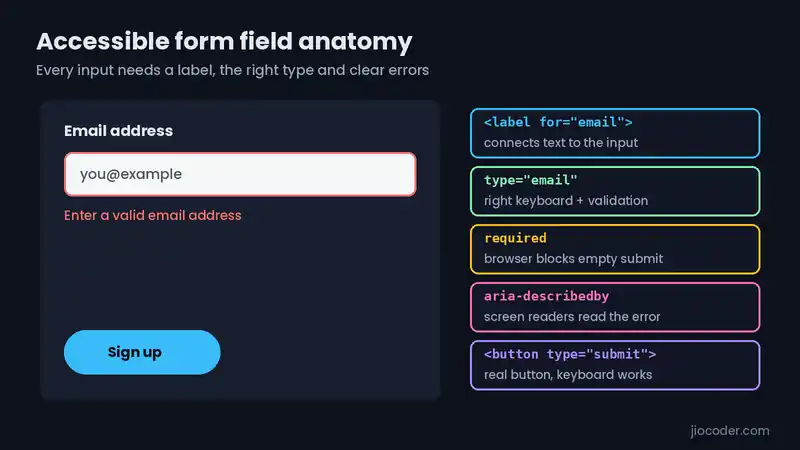
<form action="/subscribe" method="post">
  <label for="email">Email address</label>
  <input
    id="email"
    name="email"
    type="email"
    required
    autocomplete="email"
    aria-describedby="email-error">
  <p id="email-error" class="error">Enter a valid email address</p>

  <label for="level">Experience level</label>
  <select id="level" name="level">
    <option value="fresher">Fresher</option>
    <option value="1-3">1 to 3 years</option>
  </select>

  <button type="submit">Sign up</button>
</form>
Useful input types#
| Type | What it gives you |
|---|---|
email | Email keyboard on phones and basic format validation |
tel | Number keypad on phones |
number | Numeric input with min, max and step |
date | Native date picker |
password | Hidden characters |
checkbox / radio | Multiple choice / single choice |
Built-in validation attributes#
required, minlength, maxlength, min, max and pattern let the browser block invalid submissions without any JavaScript. Always validate again on the server, because client-side checks can be bypassed.
A placeholder is not a label. Placeholder text disappears when the user starts typing and is often low contrast. Always use a real <label>.
Tables for tabular data#
Use tables only for data with rows and columns, never for page layout.
<table>
  <caption>Course fees</caption>
  <thead>
    <tr><th scope="col">Course</th><th scope="col">Price</th></tr>
  </thead>
  <tbody>
    <tr><td>HTML</td><td>Free</td></tr>
    <tr><td>React</td><td>Free</td></tr>
  </tbody>
</table>
<caption> and scope help screen readers announce which header belongs to each cell.
Accessibility basics every developer should know#
- Use native elements first. A
<button>works with the keyboard, focus and screen readers for free. A<div onclick>does not. - Every image needs
alt. Describe the meaning, not "image of". - Every input needs a label.
- Keep the keyboard working. Users must be able to reach every control with Tab and see where focus is.
- Use ARIA only when HTML cannot do the job. The first rule of ARIA is: if a native element exists, use it.
<!-- Bad: not focusable, not announced as a button -->
<div class="btn" onclick="save()">Save</div>

<!-- Good: keyboard and screen reader support built in -->
<button type="button" onclick="save()">Save</button>
How browsers load scripts: async and defer#
When the browser meets a normal <script> tag, it stops building the page, downloads the script and runs it. That makes pages slow. The async and defer attributes fix this.
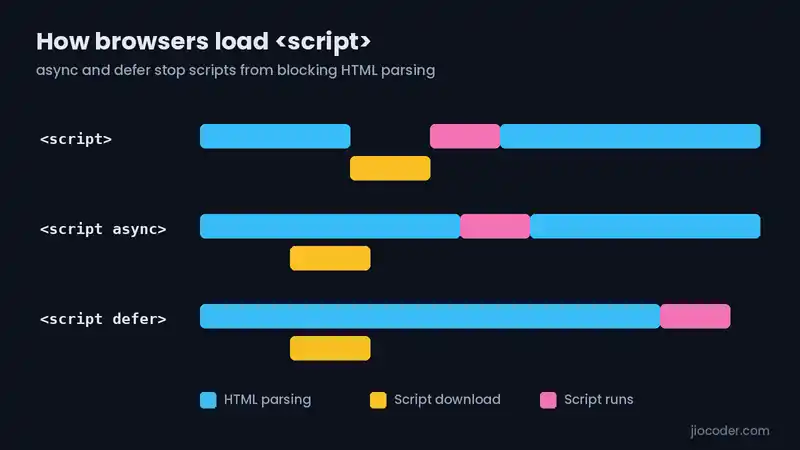
| Attribute | Downloads | Runs | Order kept? | Best for |
|---|---|---|---|---|
| none | Blocks parsing | Immediately | Yes | Rarely needed |
async | In parallel | As soon as downloaded | No | Independent scripts like analytics |
defer | In parallel | After HTML is parsed | Yes | Your app scripts that use the DOM |
<script src="analytics.js" async></script>
<script src="app.js" defer></script>
Scripts with type="module" are deferred by default.
The <head> and SEO basics#
<head>
  <meta charset="utf-8">
  <meta name="viewport" content="width=device-width, initial-scale=1">
  <title>HTML Complete Guide | JioCoder</title>
  <meta name="description" content="Learn HTML in depth with examples.">
  <link rel="canonical" href="https://jiocoder.com/articles/html-complete-guide">
  <meta property="og:title" content="HTML Complete Guide">
  <meta property="og:image" content="https://jiocoder.com/og/html.png">
  <link rel="stylesheet" href="/styles.css">
</head><title>: shown in the browser tab and as the search result title. Keep it under about 60 characters.- Meta description: often used as the search result snippet. Aim for 140 to 160 characters.
- Viewport: without it, mobile browsers render the page zoomed out.
- Canonical: tells search engines the main URL when the same content is reachable at several URLs.
- Open Graph tags: control the preview card when the page is shared on social media.
Common HTML mistakes to avoid#
- Using
<br>tags for spacing instead of CSS margins. - Choosing heading levels by font size.
- Images without
alt, or alt text like "image123". - Clickable
<div>elements instead of buttons and links. - Inputs without labels.
- Forgetting the viewport meta tag.
Preparing for interviews? Practise with our HTML interview questions for freshers, then continue with the CSS complete guide.
Frequently asked questions#
Is HTML a programming language?#
No. HTML is a markup language. It describes the structure of content but has no logic such as loops or conditions. JavaScript adds the programming logic.
What is the difference between HTML and HTML5?#
HTML5 is the modern version of HTML. It added semantic elements like <header> and <article>, native <video> and <audio>, new input types and APIs like local storage and canvas. Today "HTML" usually means the HTML Living Standard.
How long does it take to learn HTML?#
You can learn the basics in a week of regular practice. Writing semantic, accessible HTML well takes longer and improves with every project you build.
Key takeaways#
- HTML defines structure and meaning. The browser turns it into the DOM.
- Use semantic elements like
<main>,<nav>and<article>instead of generic divs. - Give every image
alttext and every input a<label>. - Use the right input types and validation attributes, and validate on the server too.
- Load scripts with
defer(orasyncfor independent scripts) to keep pages fast. - A good
<head>has charset, viewport, title, description and canonical tags.